Viewing entity relationships
Audience: All
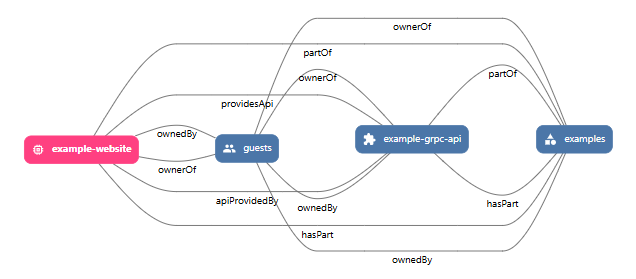
Each of the entities in the Catalog has various relationships to each other. For example, the demo data includes an API that provides data to a website. guests is the owner of the API and the website, and anyone signed in as part of the guests group can maintain them.
To see these relationships:
-
Select the name of the component in the main panel, in this example,
example-website.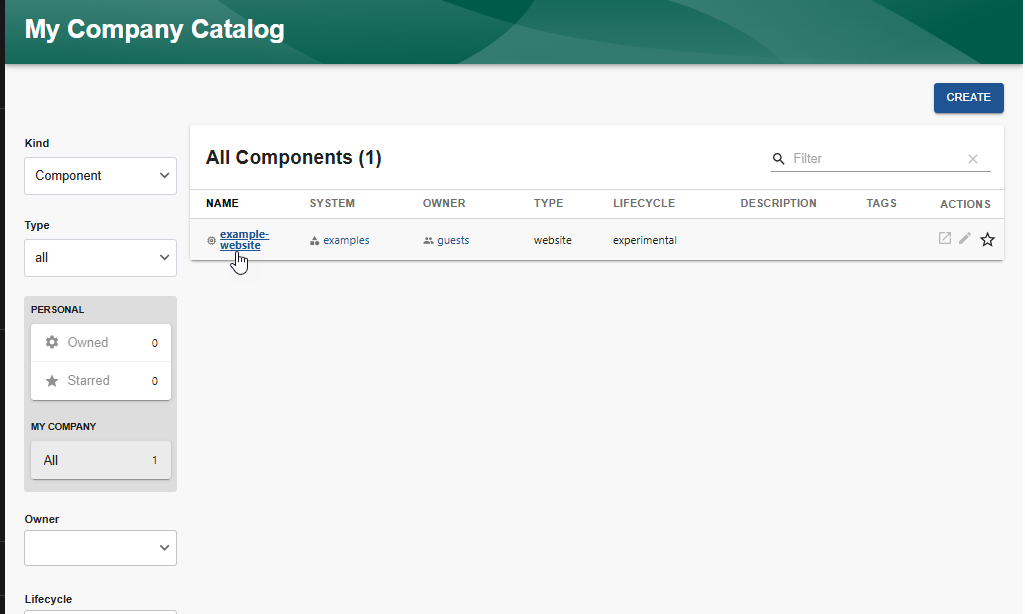
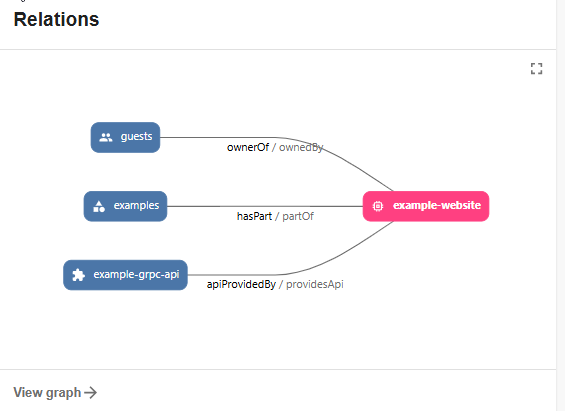
A page is displayed that includes a
Relationssection. This section displays the selected entity and any other types of entities to which it is related. Each relationship is also designated, such ashasPart/partOfandapiProvidedBy/providesApi. Well-known Relations between Catalog Entities describes the most common relationships, but you can also create your own relationships. -
Selecting any of the related entities allows you to drill down further through the system model.
Filtering the relationships
You can also view the relationships in the Catalog Graph. This view allows you to filter what entities and relationships to display.
To display the Catalog Graph:
-
Select the name of the component in the main panel, in this example,
example-website.A page is displayed that includes a
Relationssection. -
Select
View graphin theRelationssection.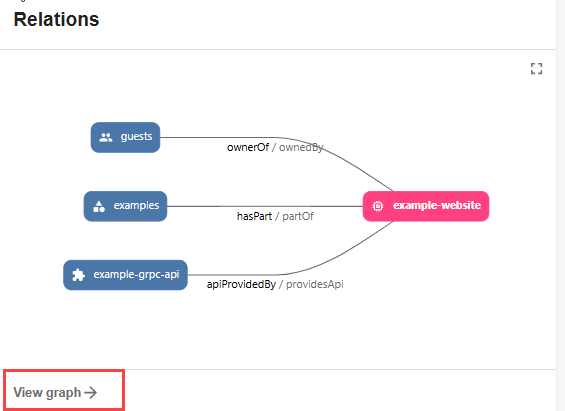
The
Catalog Graphis displayed.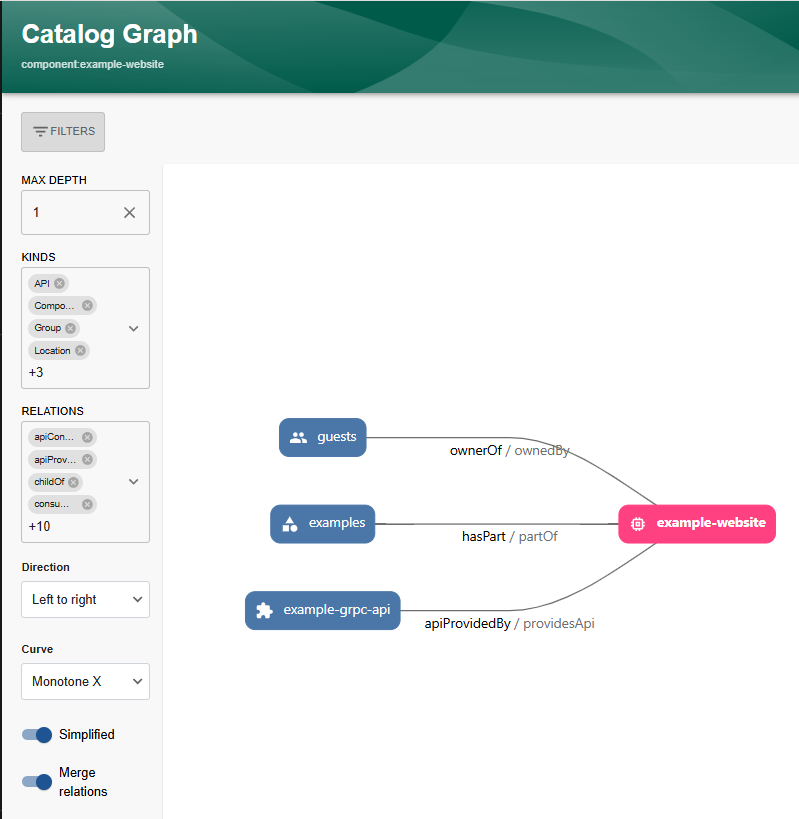
Setting the filters
The Catalog Graph automatically reflects any changes you make to the filter settings. You can set the following filters:
-
MAX DEPTH-
MAX DEPTH= 1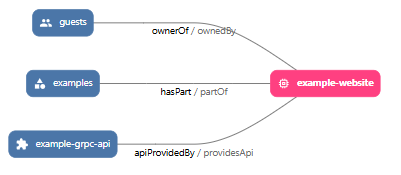
-
MAX DEPTH= infinite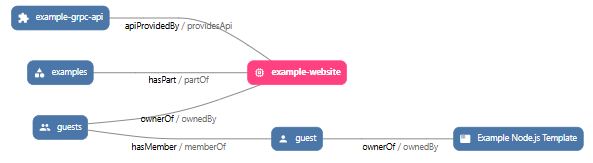
-
-
KINDS- select what kinds of entities you want to view, default is all kinds -
RELATIONS- select which relationships you want to view, default is all relationships -
Direction- orientation in which you want to view the entity and its associated nodes- Top to bottom
- Bottom to top
- Left to right
- Right to left
-
Curve-
Curve= Monotone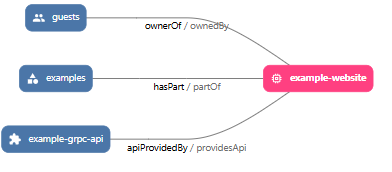
-
Curve= Step Before
-
You can also toggle:
-
Simplified- On = simple view
- Off = detailed view
-
Merge relations- On = You see the relationship from the selected entity to the nodes and from the nodes to the selected entity.
- Off = You only see relations from the selected entity to its nodes.
The following graphics illustrate the view of the nodes and relationships, based on the combination of the settings of
SimplifiedandMerge relations.-
Simplified= On andMerge Relations= On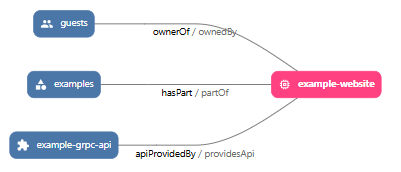
-
Simplified= On andMerge Relations= Off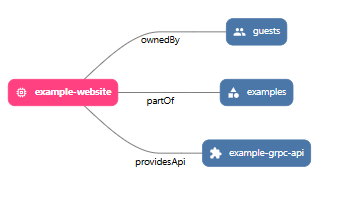
-
Simplified= Off andMerge Relations= On
-
Simplified= Off andMerge Relations= Off